
 11
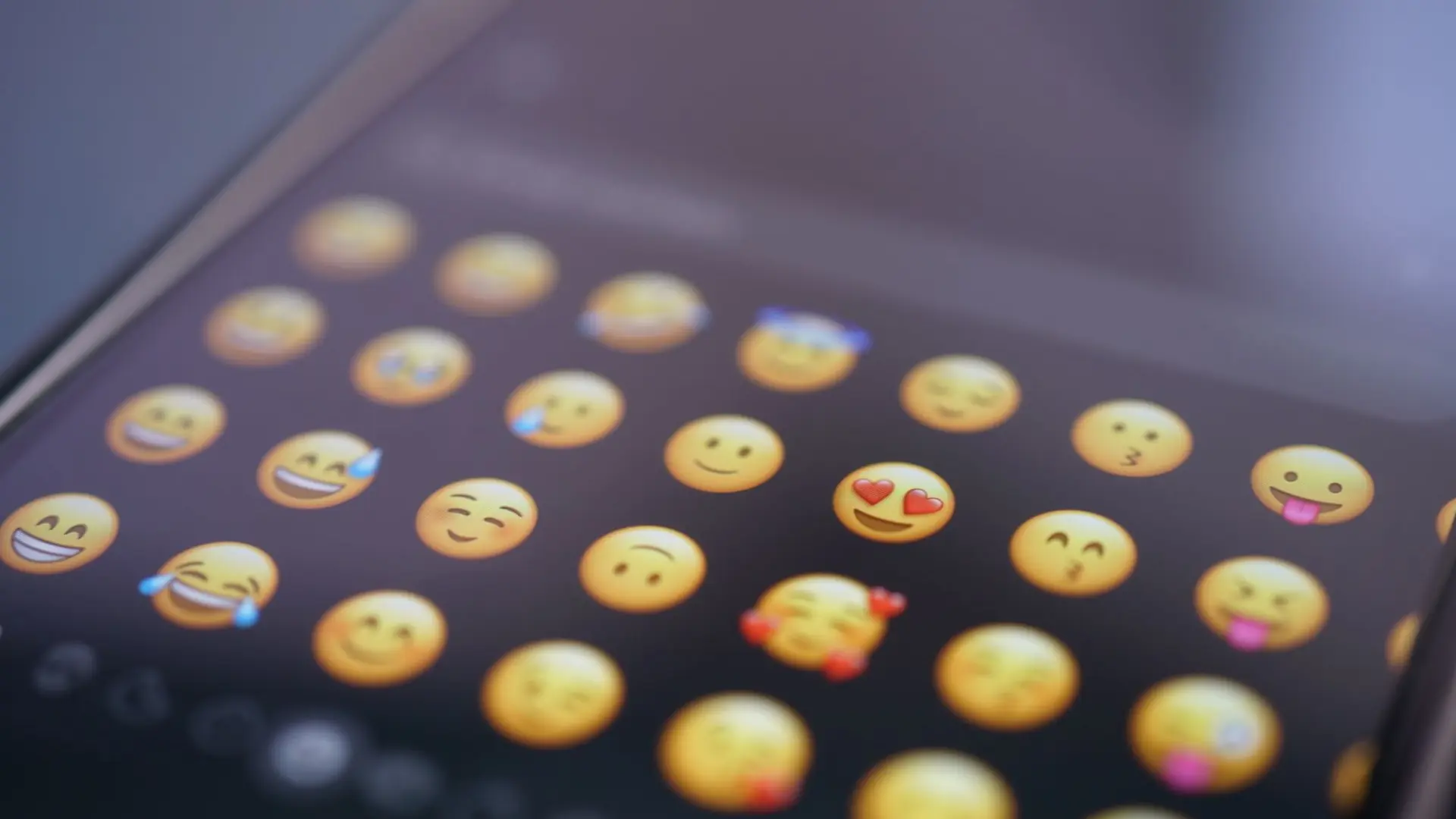
Most chat apps ship with the same few thousand emojis, and none of them look like you, your pet, or your inside jokes. That gap is why an AI emoji generator free tool has become a favorite trick of creators and group chat regulars. You type a short description or upload a photo, and the tool draws a custom emoji in seconds. No design skills are needed, and the core features cost nothing. This guide walks you through prompt recipes for Apple style, kawaii, and 3D looks and shows you how to export your creations into WhatsApp and Slack.
Two kinds of tools share this name, and knowing the difference saves you time. The first creates emoji images from scratch. You give it a text prompt or a photo, and it generates a brand new emoji picture to download. The Media.io emoji maker works this way. It accepts prompts or photo uploads, offers an Apple-style 3D mode, and lets you generate multiple emojis for free. The Magic Hour tool does the same from your browser with no sign-up needed. Just type a prompt, click generate, and download.
The second kind builds emoji combinations from the emojis already on your keyboard. You enter a word, a phrase, or a mood, and it suggests groups of emojis that express it. These sets come in styles like literal, expressive, funny, or aesthetic and work great for bios and captions. AI Free Forever offers this kind of tool for free with no login. It will not draw new emoji art, but it is perfect for fast caption ideas. Pick the type that matches your goal.

A good emoji prompt names four things: the subject, the expression, the style, and the background. A prompt that just says dog gives you a generic dog. For an Apple-style emoji, try this recipe. Sleepy orange cat, glossy 3D render, soft studio lighting, plain background. The words glossy and plain background push the result toward that clean iOS look.
For kawaii emojis, name the style and add cute details. Blushing pink bunny, cute pastel kawaii style, big shiny eyes, thick outlines, solid background. The AI responds well to words like cute, pastel, and chibi. For a bold 3D look, ask for simple shapes. Grinning frog head, inflated 3D style, smooth surfaces, centered, plain background. If prompting feels hard, use style presets. The tool at Vicsee offers six ready styles, including Cartoon, Pixel Art, 3D, Sticker, Anime, and Flat, so you can start from a style and just add your subject.
Test every emoji at real size before you fall in love with it. Shrink the preview to the size it will appear in a chat. Thin whiskers and small details vanish at 32 pixels, so keep one strong subject with a clear expression. Pair your emojis with a matching profile look using free avatar tools for a full personal brand.
A custom emoji is just an image file, so getting it into your apps is simple. For WhatsApp, custom emojis work as stickers. Export your emoji as a PNG, then use a sticker pack app on your phone to add it. Most sticker apps guide you through it in a minute. Keep the background plain so the sticker reads clearly in a dark chat bubble.
Slack takes custom emojis natively. Open your workspace settings, find the emoji section, and upload your PNG. A square image works best, and the file name becomes the shortcut you type in messages. Discord works the same way through its server emoji settings. If you share visuals often, poster generator tools help keep your graphics consistent across posts and reactions.
Media.io is the strongest all-rounder. It accepts both text prompts and photo uploads, offers an Apple-style 3D mode, and lets you generate multiple emojis for free. Try the Media.io emoji maker first if you want the most control over the result.
Magic Hour is the fastest option. It needs no sign-up and turns one prompt into one image per request, which is ideal for testing lots of ideas quickly. You can go from idea to download in under a minute.
AI Free Forever plays a different game. Its emoji tool is free with no login and creates emoji combinations for bios, captions, and messages instead of new images. Use AI Free Forever when you need the perfect emoji mix for an Instagram bio or a punchy caption.
Try this clearly hypothetical walk-through. Start with a free AI emoji generator tool and the Apple-style recipe from this guide: a sleepy orange cat, glossy 3D render, soft studio lighting, plain background. Generate three or four variations of the same idea, since results always vary, and do not pick a winner on the big preview. Shrink each preview to the size it will appear in a chat, because thin whiskers and small details vanish at 32 pixels. Keep the one strong subject with a clear expression that still reads at that size, and keep the plain background so the edges stay visible on any chat theme. Export the winner as a PNG. For WhatsApp, add it through a sticker pack app on your phone, which guides you through the steps in about a minute. For Slack, upload the square image in your workspace emoji settings, where the file name becomes the shortcut you type in messages. That size test is the step that separates an emoji that pops from one that looks blurry in chat.
Small habits separate emojis that pop from ones that look blurry in chat. Stick to one subject per emoji. Use a plain or solid background so the edges stay visible on any chat theme. Generate three or four variations of the same idea and pick the strongest, since AI results always vary. And if you post daily, social scheduling tools help you plan captions that include your new emojis.
Your first custom emoji is one good prompt away. Pick a tool, write a recipe with a clear subject, expression, style, and background, then test it in one chat app. Once your own emoji pops up in a conversation, the default keyboard will feel boring forever.